Windows Internals Explained
 This video isn't released yet.
Overview
Windows internals is a very important subject that's sadly poorly documented. While there are good reference out there, they are all lacking in one way or another which can be irritating for beginners. In this video I did my best to give you a great guide to trampoline from. You should find all of my sources and collaborators at the end of this document.
A brief history
In 1975, a young Paul Allen (Microsoft's co-founder) was walking through the Harvard square a magazine caught his attention. It was an issue of the magazine Popular Electronics. The cover stared a computer called the Altair 8800. A personal computer released just the year before by MITS. Allen bought the magazine and headed back to his dorm where he met with Bill Gates.
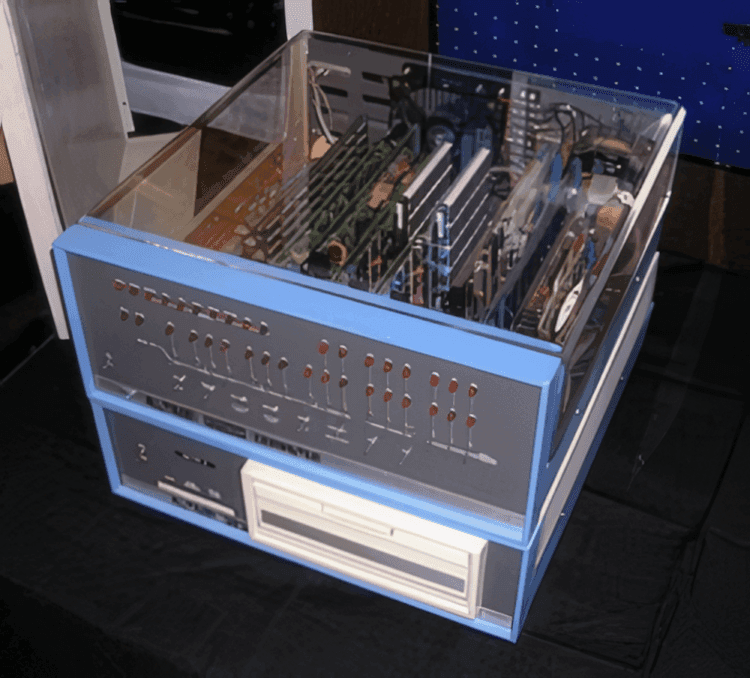 The Altair 8800 by MITS, released in 1974
Allen and Gates wanted to land a deal with the company for the development of an implementation of BASIC for the system.
Gates called and organized a meeting to show them this software which they had not even programmed yet. In March they met with the company, and their presentation was successful.
A month later, Allen and Gates founded Micro-Soft which stood for Micro Computer Software. Over the years they made many more contracts to the point that in 1980, their profits were of 8 million dollars. At this point, a few IBM employees approached them with a deal to code an operating system for their next personal computer.
To save themselves a lot of time they ended up buying an already existing system called 86-DOS. They modified and licensed it to IBM as MS-DOS. Microsoft ended up releasing Windows in 1985. It was a graphical interface running on top of DOS. This later evolved into Windows 95, Windows XP and eventually all modern versions of Windows.
Fundamentals
Before diving into Windows internals there are concepts you must understand. While this chapter covers many fundamental concepts it isn't exactly enough for a complete beginner. See it as a refresher. If you struggle too much with these contents I would advice you to start by learning the very basics of computer science (I sadly haven't made such a guide).
Memory
I'll assume that you at least understand number systems such as binary and hexadecimal and that traditional computers deal with data as bits (binary).
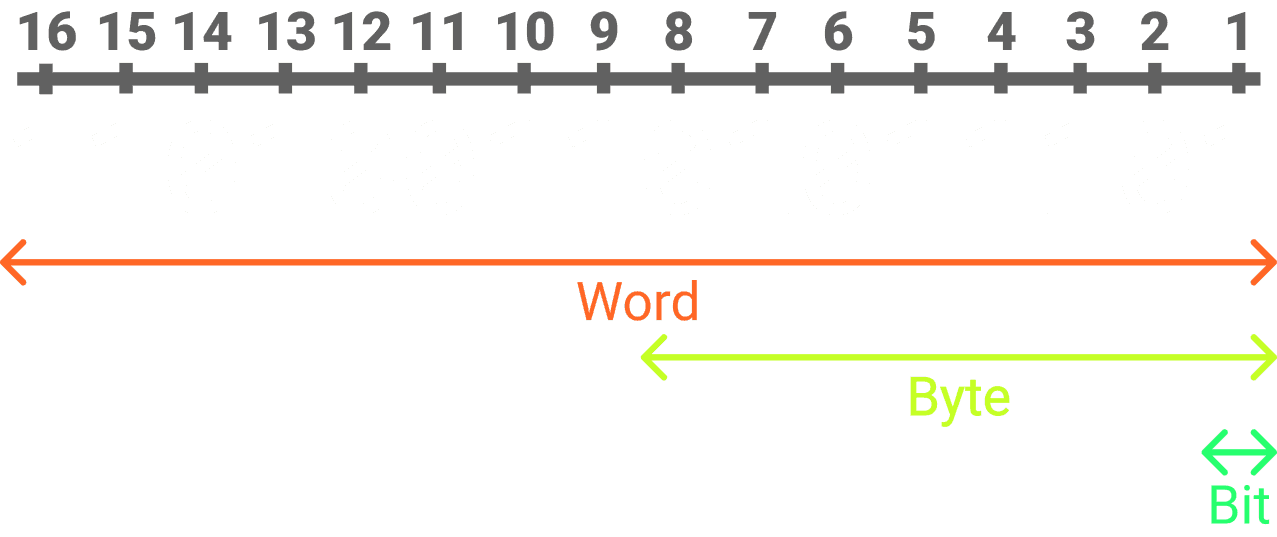 Common data size units in computing
When dealing with larger chunks of data we have other measurements. The more common unit we use is the byte. It represents 8 bits. A less common, but popular measure in Microsoft's software is the word. It represents 16 bits. Other variants of it are the double and quadruple word, these being two and four times the size of a word respectively.
Running programs like Notepad and Chrome are called processes. Processes are how the system isolates the resources of each running application.
The most important example of such an isolation is the address space. Fundamentally physical memory is accessed byte by byte. There are many problems with letting programs freely access physical memory. For one it would be a logistic nightmare to manage. For two it would be unsafe. Any program could read and write anything. These two reasons are mostly why we use virtual memory.
Virtual memory constricts each process into its own address space. Addresses act as indexes into tables describing the chunks of memory associated to each application. We call these chunks pages. Usually 4 levels of tables are used. Each table contains 512 entries each pointing to a table in the lower level. The only exception to this are the tables in the final level which instead store the index to the exact physical memory page.
8 bits of a virtual address is used to index the first level of tables. The next 8 indexes the second level, and so on, until the last 12 bits. These bits offset into the specific page.
Memory pages are usually of 4 kilobytes, aligned to a power of two in size. I say usually because it is possible for the system to index them as huge and giant pages of 2 megabytes and 1 gigabyte respectively. Although this is beyond the scope of this lesson. Assuming they are always of 4096 bytes, the use of the 12 final bits in virtual addresses to index into pages makes sense since 2 to the power of 12 is 4096.
The number of entries in the memory tables is not random. Each entry is of 64 bits. This means that every table is of exactly 4096 bytes in size:
That's the size of a memory page.
The table entries don't use their full 64 bits to point to the next tables or pages. This allows their remaining bits to be used to specify additional information such as whether or not the described pages should be executable and or writable. While virtual memory isolates programs into their own address space, it's still possible for their page tables to point to the same physical pages if they need to share memory. In fact, the system uses this to share dynamic libraries between programs and save on physical memory (in reality it uses something called prototype page table entries, but the concept is the same).
To ensure that one program may not modify the code of a shared library, a bit in page table entries is set to specify that the concerned pages use the copy on write mechanism. When a program writes to such a page, the system will copy its contents into a fresh physical page and change the page table entry of the writing program to point to it.
Now the writer process has its own copy of the code it modified and won't affect the execution of other programs depending on the same library. We'll expand upon libraries later in this video. Windows even maps most of its system code into the upper portion of every application's virtual memory. Although the mapped pages have the kernel bit set, making them only accessible when the CPU is in privileged mode.
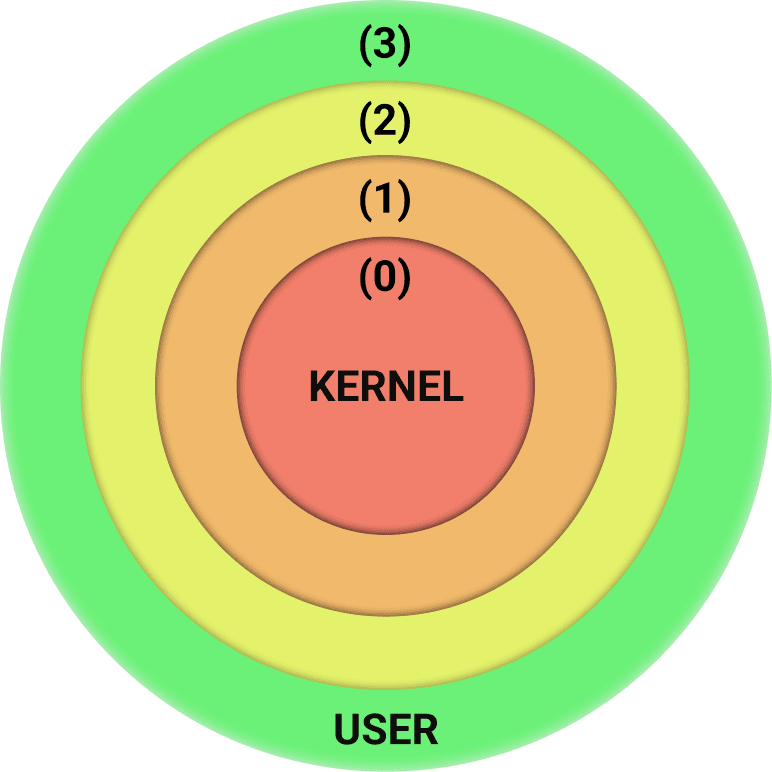 Privilege levels illustrated as protection rings
The idea is that the system runs in permission levels. The lower the level, the more permissions the running code will have. This is often illustrated as protection rings like above. In modern systems rings 1 and 2 are not used. The main property of protection rings is that they lock sensitive instructions and data behind the appropriate levels. They also separate the user address spaces and the kernel address space.
In the case of the beforementioned “system code” that's mapped in every application, the pages will cause an exception to occur if they are accessed while the CPU is running in ring 3. This will essentially crash the program.
Traditionally we call ring 3 the user mode and ring 0 the kernel mode. User mode code often needs to switch to kernel mode to accomplish certain privileged operations like
creating a process. The procedure that Windows provides to do so leverages system calls. The user mode code sets up arguments describing the operation that the system should
run and invokes the syscall instruction.
Basically before invoking this instruction, the code will specify what operation it wants the system to complete using a service number. It's essentially an index the system will use to get the specific function to handle the operation from a table called the system service dispatch table or SSDT.
The code that will handle this is part of the system code I mentioned that is mapped into the upper part of every application's memory. We call it the system call handler. The syscall instruction will put the CPU in kernel mode and jump to this handler.
CPU
With memory out of the way, let's briefly cover CPUs. These can come in many architectures. Unless you're watching this from a laptop or a phone, your computer's architecture is likely x86_64. Otherwise it's probably ARM64. I won't get into all the differences between architectures, but know that throughout this video anytime I refer to processor-related features I only consider the x86_64 architecture.
At a high level you can understand a CPU as one big component composed of many units.
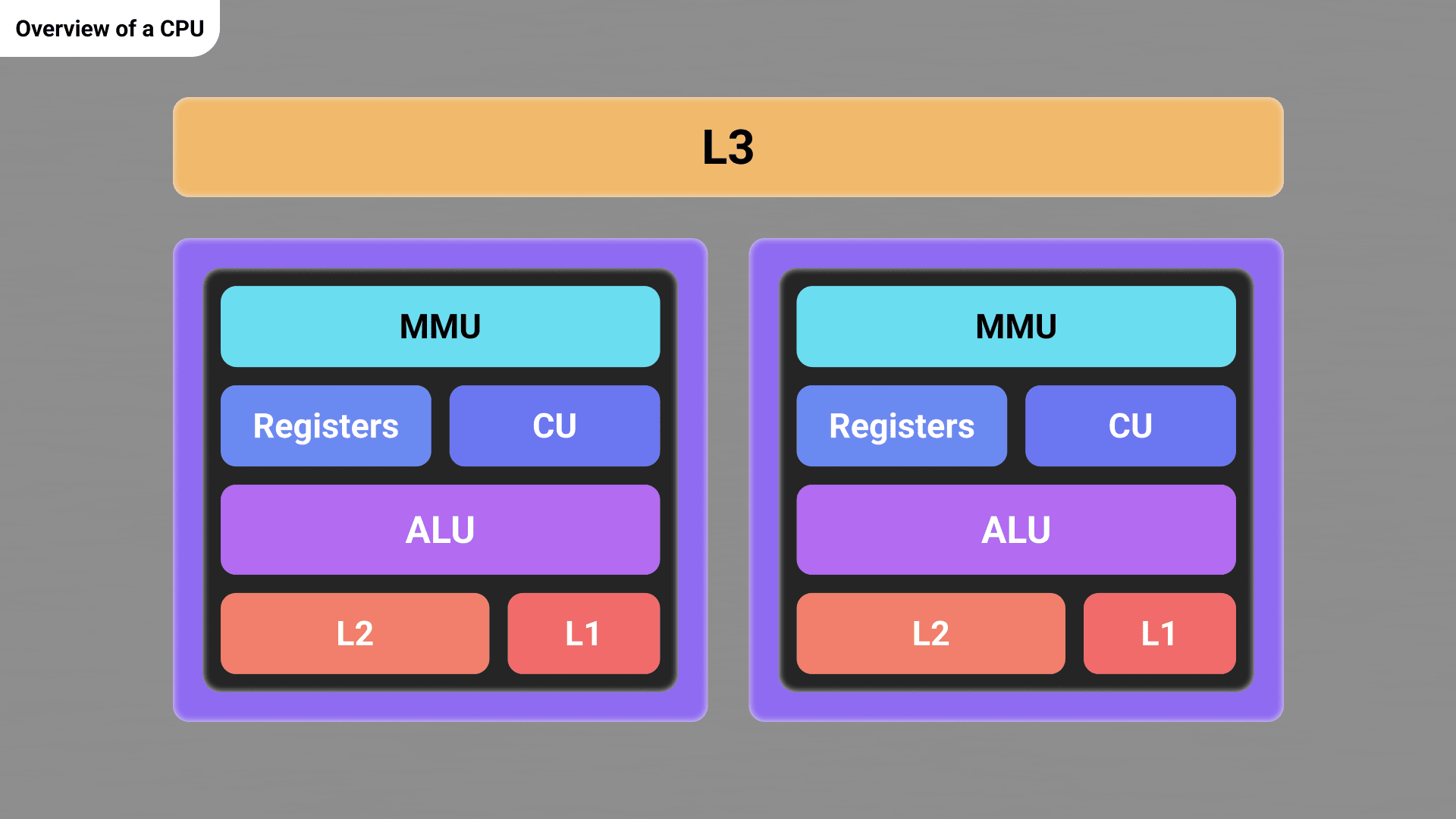 Simplified overview of a CPU's internal units
What you're seeing here is a very simplified overview of these units. I'm only showing the most relevant parts.
The L3 is a large cache shared between all the cores. Each core has both an L2 and L1 cache as well. The lower the cache number the smaller in size it is, but the faster to perform operations upon it also is. L3 being the largest of all and shared among the cores it is also the slowest. Caches store frequently used data and instructions. Note that CPUs usually have more than a single L2 and L1 cache, each for a specific purpose.
Within cores is a control unit (CU). It is responsible for fetching instructions from code and directing them to the appropriate execution unit. In this case, there's only one execution unit, the ALU. It stands for arithmetic logical unit and handles arithmetic operation. Modern CPUs include other execution units, but I want to keep things simple.
The MMU or memory management unit is the component responsible for handling memory. That includes virtual memory.
Registers are small storage units used to store data needed within the current execution context. In 64-bit computers their size goes from 64 bits up to 512 bits. They are the fastest way a CPU can handle memory.
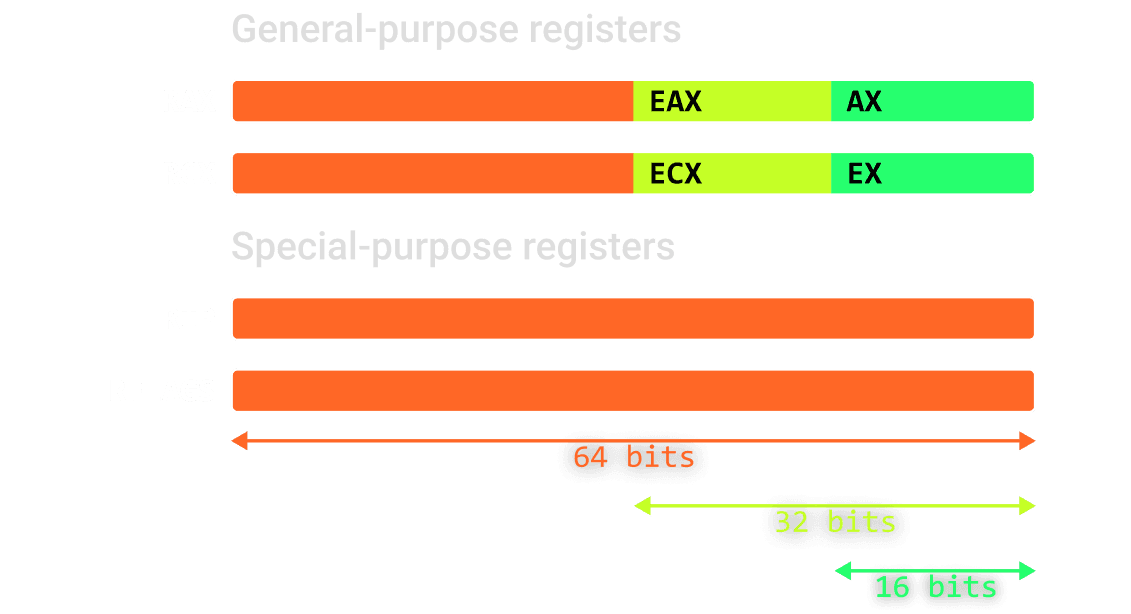 A very few registers
What you see here are only the most commonly used ones. These are the labels we refer to them as. RIP or the instruction pointer points to the instruction that the CPU is currently executing.
Other registers such as RAX or RCX do not have a special use. Machine code can even refer to lower portions of some of
said registers when necessary. For instance EAX would access only the first 32 bits of the RAX register. Although they
don't have a mandatory use case, basic conventions exist for how they are used. For instance RAX is often utilized to
store the return value of a function.
The CPU uses RFLAGS as a bitfield to specify certain conditions and configuration. For instance, the 6th bit in it
represents the zero flag. After testing a register, if this bit is set to 1, then the value it stores is zero. Note that
only the EFLAGS part of the register is accessible in user mode. The remaining bits are reserved for future use.
Segment registers were introduced in the past to handle segmentation. With the advent of virtual memory this mechanism was rendered obsolete. Operating systems now use them to store useful pointers to process and system-related structures. This is something we'll expand upon later.
There are many other registers I didn't mention, many of them are used by the system for configuration purposes. For
instance the CR3 register which is used to store the current program's first level of tables for translating virtual
addresses.
Threads
Every process contains threads. These are execution contexts meaning they each represent a state of the CPU. They are associated to the specific register values present in the CPU when executing the instructions associated to them. Threads can be executed simultaneously on a multi-core processor.
Let's cover the thread stack. It's a fixed-size read and writable chunk of memory every thread has dedicated to it. They use it to handle local variables and arguments that functions are using. In a data structures class you'd be told that a stack is a last in first out data structure, meaning the last element to be added would be the first one to be removed.
Although on modern systems, the thread stack doesn't have to be accessed in this order, but typically each function reserves its own portion of it which only it uses. We call this portion a stack frame.
Two registers are associated to the stack. RSP, the stack pointer and RBP, the base pointer. The stack pointer simply points to the top of the stack while the base pointer
points to the base of the current stack frame.
For example, after calling foo, this code would first push the address where the code must return to after running foo, then the base pointer of the previous function's stack frame, set the base pointer to the current stack pointer, use 4 bytes to make space for the integer, and finally add the value 5 to that location after zeroing it out.
Zeroing out stack values is important because there could be unexpected data left there from previous stack frames. Once the code is done it simply pops the old base pointer,
thus setting it back to the old stack frame's value, now the stack pointer would point to the return address and thus when executing a return instruction the code would pop
this value into the instruction pointer thus going back after the call to foo.
Because a stack is fixed in size you wouldn't use it to store large data such as an image. Instead, you'd use something called the heap, but we won't cover this now.
Executables (PE)
Imagine you have some program on your desktop. Say... notepad. The executable file stored on your disk representing that application uses a format called portable executable, or PE for short. We call it portable because it supports multiple architectures.
If you were to analyze it with some specialized tool, close to its beginning, you'd find a header called the DOS stub. It's a small 16-bit program that would be run when executing the file on an old DOS system. Usually its code simply prints the following message:
This program cannot be run in DOS mode.
Most of your applications hold this old piece of history. Microsoft decided to put it there for backwards compatibility. These two words are something you'll hear a lot when working with Windows.
Right before the DOS stub is the DOS header. It's the very first chunk of information in PE files. It contains a value specifying how far we need to go to avoid the DOS stub and find the NT headers.
These consist of two very important headers called the file header and the optional header. The file header holds information such as the architecture the executable is for and when the file was created. As for the optional header, don't be mislead by its name, it's actually pretty important as it stores information such as where the code begins.
After all these headers is the section table. A section is a portion of an executable dedicated to storing some data. This can be executable code, information about the functions the program needs to import from libraries or even resources such as images.
The purpose of the section table is to list all these sections using entries which specifies their name, sizes and attributes. The attributes specify whether the data should be readable, writable and or executable. This is for security reasons. By default, you wouldn't want the code section to be writable.
When you execute an application, the system will make sure to setup the address space accordingly. Then say some executed code tried to write into a non-writable section like the code section, an access violation exception would occur and the program would crash.
Some sections with specific names are almost always present in any executable. Some examples are the:
.textsection. It's used to store executable code.- the
.datasection. It's used to store data that should be writable. - and the
.rdatasection. It's used to store data that should only be readable.
There's a handful more examples I could give, but most of them will only be relevant to us later in this video.
So what happens when you double click that notepad application? The program that will handle this action is explorer.exe. That's what displays your desktop, taskbar and file
explorer. If you were to terminate this program, your desktop, taskbar and any explorer window you had open would vanish.
When you execute notepad, under the hood explorer.exe will call the function
CreateProcess. It's a utility that's part of the
Windows API, a massive set of utilities that programmers can use to interact with the operating system in a very simple way.
The Windows API is not all stored in one big library. It's instead fragmented in different files that programs can either statically or dynamically link. Statically linking a library is just slapping all of its contents straight into your executable. Dynamic linking exists to avoid wasting space when multiple programs require the same library.
To make this possible, files called dynamically linked libraries, or for short DLLs, are stored on the disk. When running an executable the system will make sure to make these libraries available in memory and map them into the processes which require them.
The three most important DLLs associated to the Windows API are kernel32.dll, kernelbase.dll and ntdll.dll. kernel32.dll is the legacy version of
kernelbase.dll. kernelbase is intended to be the modern replacement for kernel32, but it was kept for backwards compatibility. Nowadays its functions mostly are just
forwards to the functions in kernelbase so we'll ignore it.
Overview of Windows
Before we dive deeper in CreateProcess, I think we should get a small overview of Windows. Threads are scheduled by Windows, meaning the system makes decisions for when and
for how long each should run. The thing that handles this scheduling is intuitively called the scheduler. It's part of a bigger group of Windows components called the kernel.
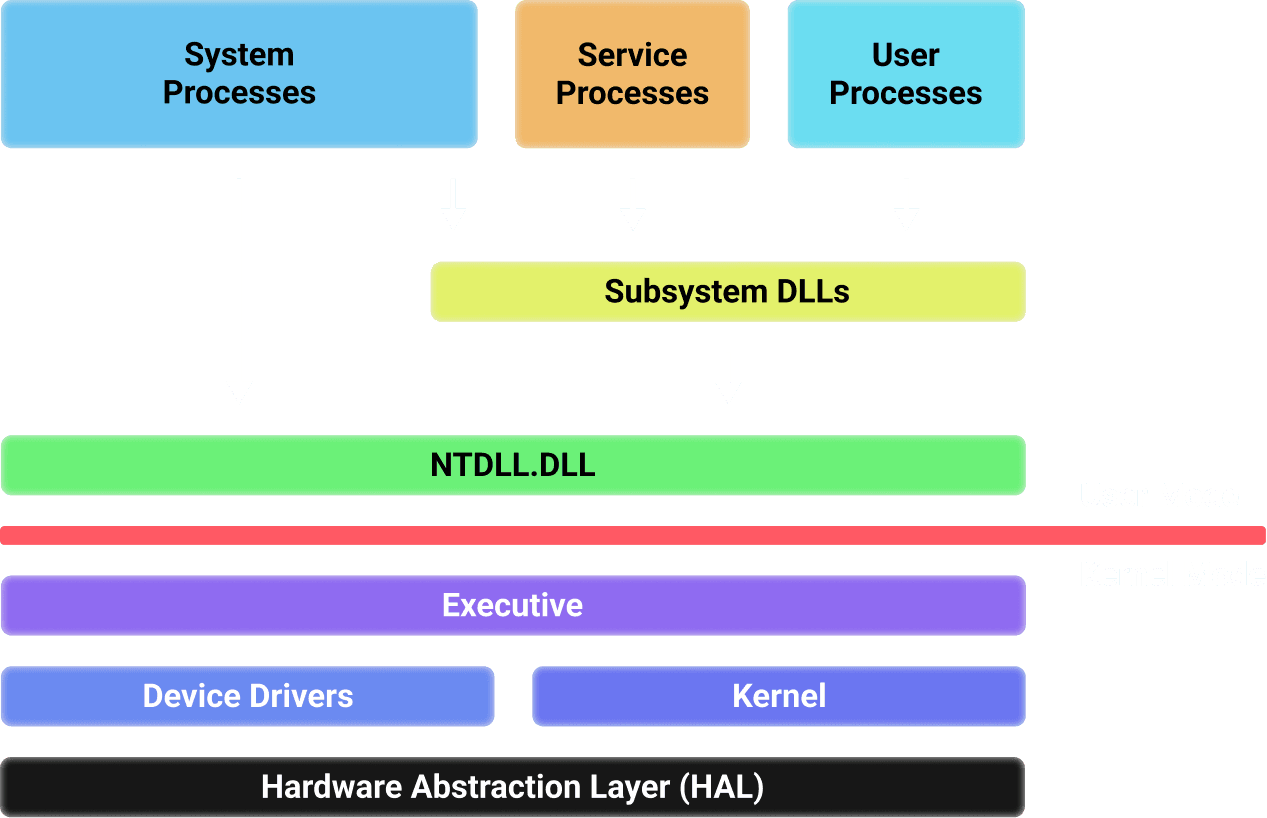 User mode and kernel mode components of Windows
What you see here is an illustration of the Windows architecture. This red bar divides the user and kernel mode parts of Windows. In user mode you find user processes which
depend on subsystem DLLs. These are libraries like kernel32 and kernelbase. We call them subsystems because they each expose some subset of the Windows API. For instance,
the subsystem DLL user32 provides functions to manage graphical interfaces and user inputs.
Down the line almost all these functions end up invoking some function in NTDLL. NTDLL holds three variants of functions each having a specific prefix:
- The
Nt, or native functions are essentially system call wrappers. - The
Zwfunctions implement the same system calls as theirNtequivalent, but for kernel code to use in certain cases. In user-modeZwfunctions are just aliases ofNtones. - The
Rtl, or runtime library functions are helper functions that may or may not perform system calls.
The reason programs rarely directly invoke NTDLL routines is for simplicity. The wrappers provided by the other DLLs often include additional features such as argument parsing, validation or error handling.
Service processes are processes which generally aren't executing within the context of some logged in user. An example of a service process is Windows Defender, the anti-virus. System processes are fixed processes with a specific system-related purpose. An example of this is the logon manager which handles logins and logouts.
As for the kernel mode side of Windows, the executive is its higher level. It contains components such as the memory manager and the object manager. We'll discuss these further later on. The kernel includes lower-level features such as the scheduler. Device drivers include drivers like your graphics card driver.
And finally, the hardware abstraction layer or for short HAL is the lowest part of Windows. It's the actual hardware-specific implementation of the system and will vary significantly between architectures. It's also the one we worry the least about as users.
CreateProcess part 1
With this overview out of the way we can go back to what CreateProcess does. Quick recap, we saw that explorer.exe was responsible for displaying your desktop and executing
the programs you double click.
To do so it will invoke the CreateProcess function from kernelbase.dll. This function on its own doesn't really do much. Instead, it's another function that it calls named
CreateProcessInternalW that sets things into motion. This function will gather and format all the required arguments to then invoke NtCreateUserProcess from NTDLL.
That's the system call which will hand control to the system so it can create the process. The system call handler and the functions which process the specific operations are
all stored in the file ntoskrnl.exe. This file stores most of the Windows executive and kernel.
System call handler
You can find in it a function with the same name as the one invoked from NTDLL, which the dispatcher will invoke.
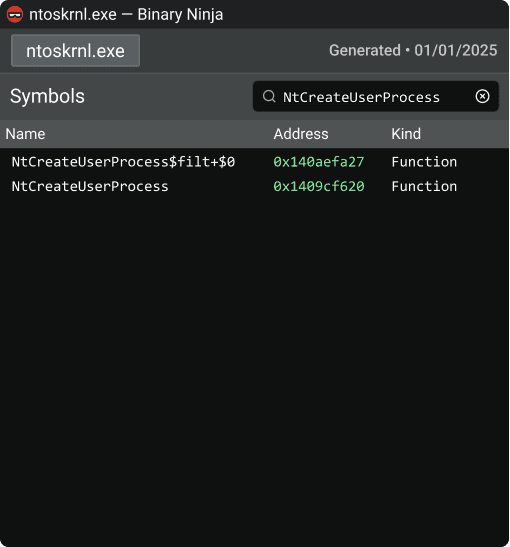 NtCreateUserProcess in ntoskrnl.exe
As a matter of fact you can even find said dispatcher under the name KiSystemCall64. The shadow in this one's name is to differentiate it from the original version. It
mitigates the Meltdown hardware vulnerability, but that's a subject for another video.
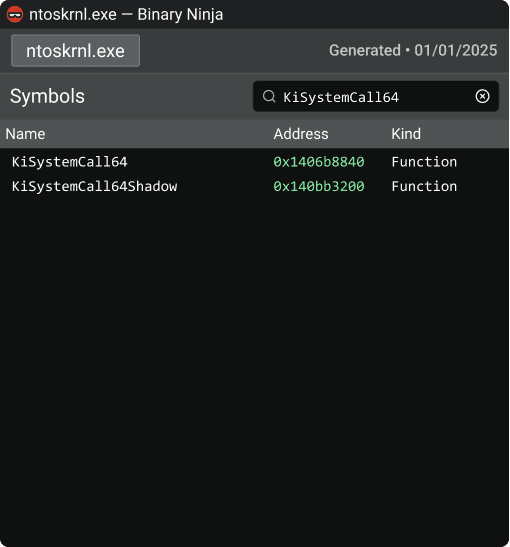 KiSystemCall64Shadow, the system call dispatcher
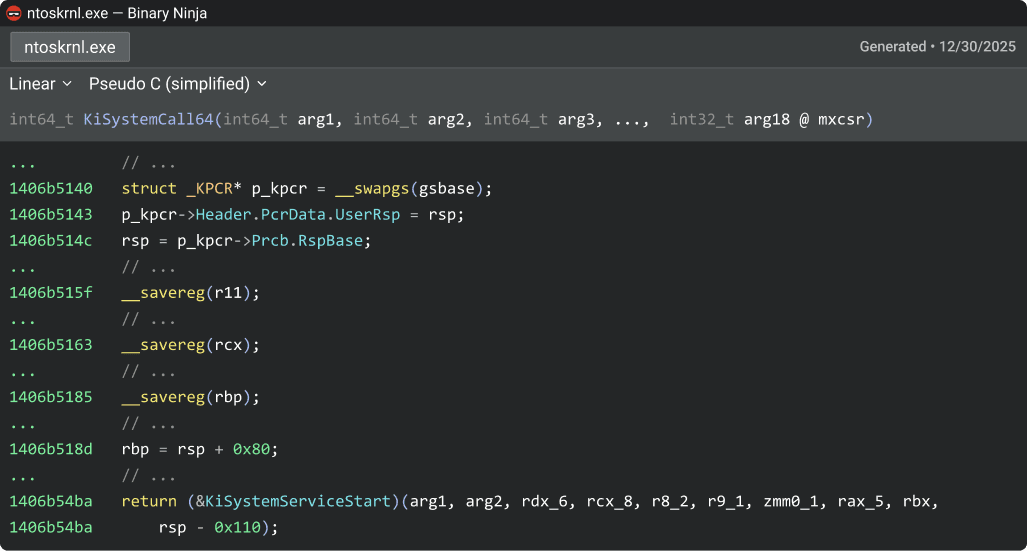 Decompilation of KiSystemCall64Shadow
KiSystemCall64's code first executes the swapgs assembly instruction. This swaps the current value of the GS segment register
with the value of the IA32_KERNEL_GS_BASE MSR. This points to a per-processor kernel structure known as the processor control region or KPCR. Per-processor means that each
core inside of your CPU has one associated to it. It contains important core-specific data which we'll explore later, and contains another structure known as the processor
control block or KPRCB.
Next up the code backs up the old stack pointer and makes it point to the kernel stack associated to the current processor. Indeed, to isolate kernel mode from user mode, even a special kernel stack is used. Afterwards it also store the original value of the base pointer and makes it point into the stack.
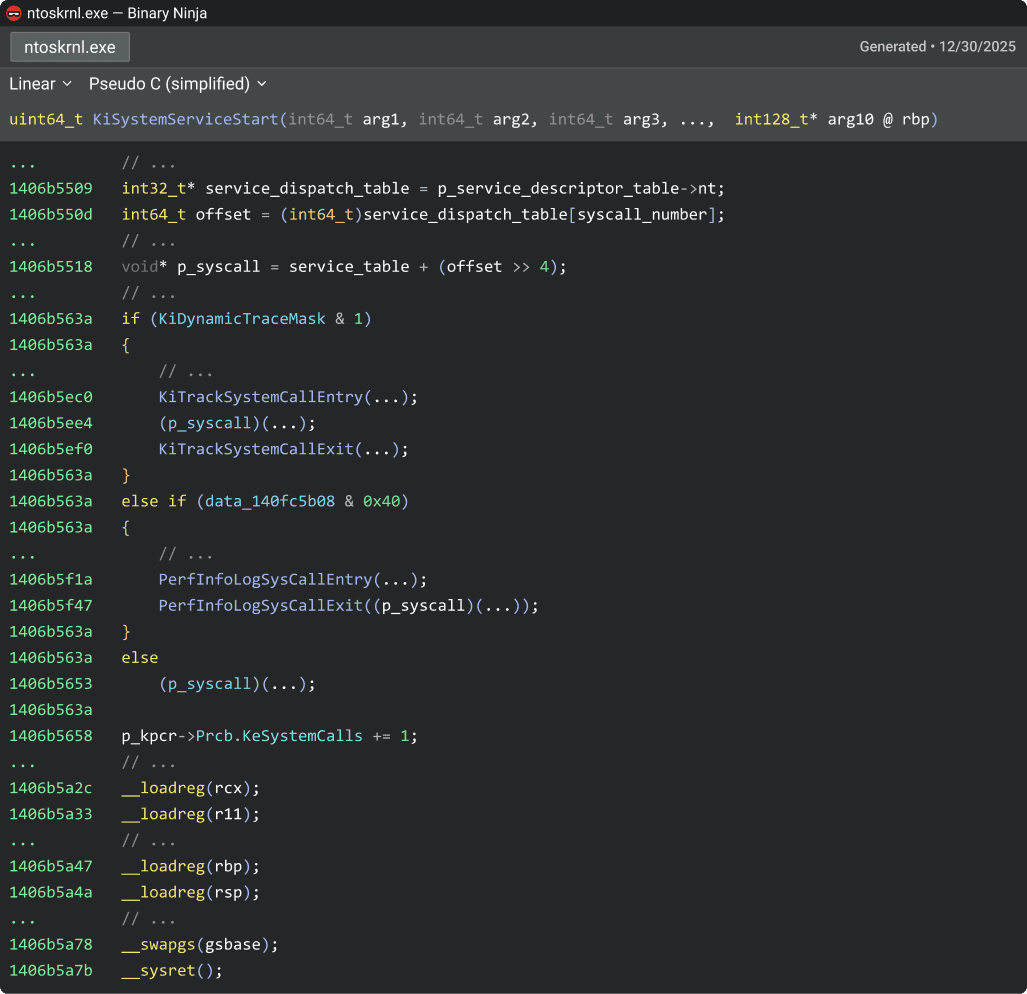 Decompilation of KiSystemServiceStart
Down the line the handler falls into another function called KiSystemServiceStart. This is the part that will actually invoke the appropriate system call. It first accesses
the service descriptor table, a structure containing information regarding the system service dispatch table, or SSDT.
The SSDT contains offsets to the actual system call functions. It is simply indexed using the system call number specified from user mode. The specific function is then invoked. Based on certain flags, some logging routines may also be executed with the system call.
Once the operation completed a count for the amount of executed syscalls inside of the processor control block is incremented, the registers that were saved on the stack are
loaded back into their original value, the gs segment is swapped back and finally the sysret instruction is executed.
Most code of ntoskrnl.exe is undocumented. This makes understanding it hard. Thanks to community efforts and some reverse engineering I'm able to provide you with a decent
overview of its contents. Any external help or information I may have used will be mentioned and credited at the end of this document.
CreateProcess part 2
Back to the syscall NtCreateUserProcess, simplifying its code is not as straightforward as it was with the system call handler. While all process creations end up calling the
same mandatory functions, it's far complex and contains many more conditions. All to say: don't take everything I say for granted.
In my case I hooked the system call handler so it would break only when a system call with the service number of NtCreateUserProcess is triggered, and the process owning the
thread is explorer.exe.
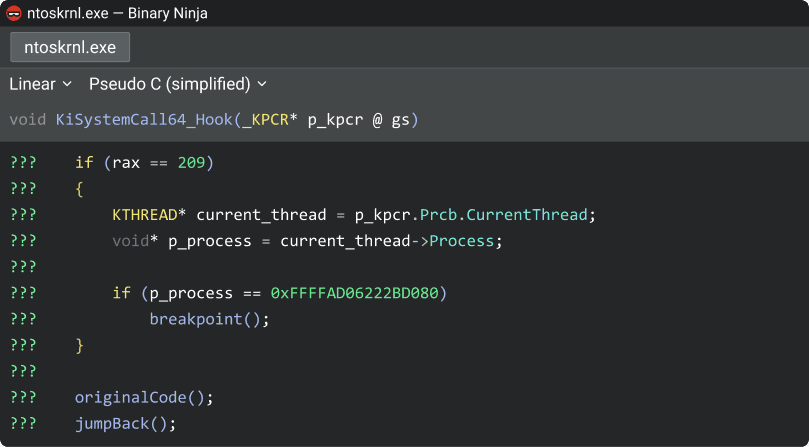 Hook to break on NtCreateUserProcess's syscall implementation when issued from explorer.exe
Then I simply opened the file explorer and executed notepad.exe so I could trace what the system call does. It begins by opening the executable file by calling
IoCreateFileEx. Then it creates a section object to map the file into memory by calling MmCreateSpecialImageSection.
Object manager
Before I explain what a section object is, I need to explain what even are Windows objects. They are a representation of resources currently in use that the system needs to keep track of such as processes, files, threads etc. Different types of objects contain different information specific to the kind of resource they represent, but they all are prefixed by an object header.

Essentially there's an executive component known as the object manager. It's responsible for managing the lifetime of Windows objects. Object headers contains details such as the reference count and handle count. When such counts reach 0 the object manager will get rid of concerned object, unless it's specified as permanent through the flags member.
Windows objects are not directly accessible from user mode for security reasons. If a process wants to interact with another process for example, it will need to open a handle to it. This handle has permissions and behaves as a key for the using process to interact with the target process through the Windows API.
All the handles a process has open are stored in a table associated to it. Every time some code is done with using a handle it must close it so the object manager can be aware
when objects are not needed anymore using the CloseHandle function.
When working from kernel mode although, since objects are directly accessible handles are not necessary. As an alternative to still be able to specify that an object is needed,
the reference count is used. Kernel mode code will invoke the function ObReferenceObject to increase the object's reference count, and ObDereferenceObject to decrease it.
Windows objects have a security descriptor associated to them. This is a structure that describes security information such as the owner of said object. It also points to two access control lists, or ACLs. These are structures followed by zero or more access control entries, or ACEs for short. Both of these ACLs have a different purpose. The system access control list, or SACL describes what operations and by who should generate audit logs. On the other hand, the discretionary access control list, or DACL describes who has what permissions over the object.
The structure for ACEs looks something like this:
I write “something like” because I couldn't actually find a basic definition anywhere. I had to base myself of WinDbg outputs.
The type of an ACE can range between many different values. The more interesting types are:
- Access allowed, which grants access to a user.
- Access denied, which denies access to a user.
 Layout of an access control entry's permission mask
The mask is what specifies the permissions the ACE grants or denies. Each bit within the mask specifies a different permission. The first 16 bits are object-specific permissions, the next 8 bits are for standard access rights (delete, modify access descriptors, change owner etc), the 4 bits after that we can ignore, and the final 4 bits are for generic rights (read, write, execute or all).
The SID or security identifier is used to specify which user is affected by the ACE. This is a unique identifier Windows uses to identify any entity which the system can authenticate. When displayed as a string an SID looks like so:
S-1-5-21-3272137373-1459051141-3360945348-1001
While this is the standard format in which SIDs are displayed as strings, the S indicating that this indeed is an SID, and the dashes separating the different parts of it
only figure for readability. SIDs aren't stored as strings.
Section objects
Back to the section objects, they come in two types: file-backed and page-backed. File-backed section objects, as their name implies represent a file to be mapped into memory. I've made some pseudocode to exemplify such a use:
Almost all the function calls here such as CreateFileA, GetFileSize or CreateFileMappingA are Windows API functions. The first thing I'd like to point out are these two
conditions. Their purpose is to verify that the functions executed successfully by checking the value of the handle they returned.
What I want to specifically highlight is that both check for a different value. On one hand with CreateFile we compare the handle with the value INVALID_HANDLE_VALUE which
is defined as negative one. On the other with CreateFileMappingA the handle is compared with nullptr which is just 0.
This is just one of the inconsistencies in the Windows API, and it's why you should always carefully read the documentation for such functions. You can find it through simple google searches and specifically on Microsoft's learn website.
Creates or opens a file or I/O device. The function returns a handle that can be used to access the file or device for various types of I/O depending on the file or device and the flags and attributes specified.
The second thing I want to mention is the reason for the suffix A at the end of some functions. Every time a Windows API routine takes in a string as an argument, Microsoft
makes available at least two variants of said function: one with an A as a suffix and one with a W. The difference has to do with character encoding. The W variants use
wide strings which is actually now the standard in Windows. But for simplicity and backwards compatibility reasons they maintain the A variant for regular string.
Creates or opens a file or I/O device. The function returns a handle that can be used to access the file or device for various types of I/O depending on the file or device and the flags and attributes specified.
These A variants usually convert the strings you input into wide-string before working with them or issuing a system call. They also make sure to convert the outputs as well
if they contain strings.
With this out of the way, the CreateFile can be used to open or create files and get a handle to them. In this case the code is intended to open an existing file called
"example.txt" with read and write permissions.
Creates or opens a named or unnamed file mapping object for a specified file.
After making sure the returned handle is valid it gets the size of said file and creates the file-backed section object using CreateFileMapping. Don't be deceived by its name
or description, under the hood it calls NtCreateSection and returns its handle.
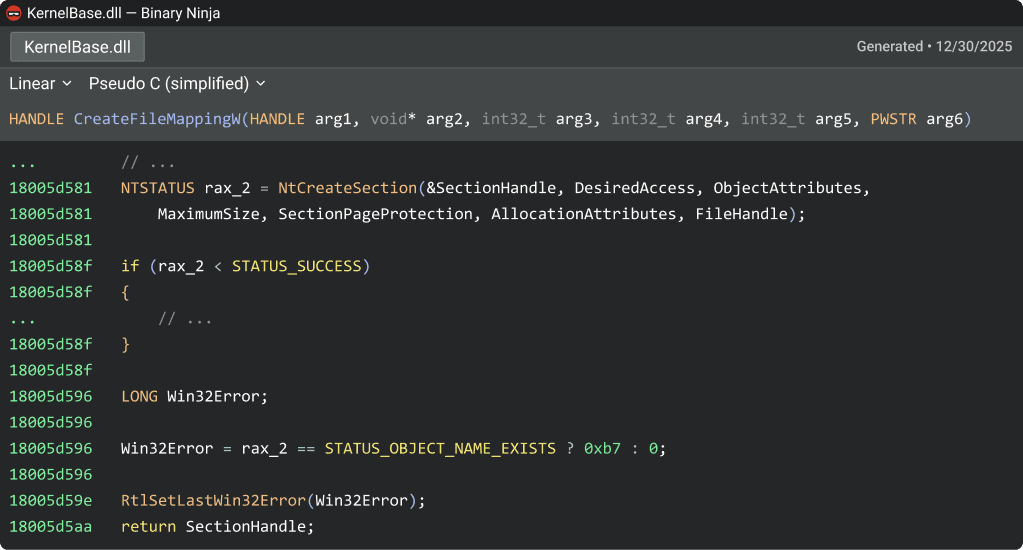 Decompilation of CreateFileMappingW
After a check that the section object was successfully created, the code calls MapViewOfFile. This will tell the system to map the pages of memory representing the file into
the process's address space. It can now directly interact with it.
The contents of the example.txt was a simple "Hello, World!" which gets printed in the console. Before ending everything the code writes back "Goodbye World!" and calls
FlushViewOfFile. This will write the modified pages back into the file. Finally it unmaps the memory and closes the handles that were opened.
On the other hand page-backed section objects don't represent any particular file. They're just useful to share memory between different processes. I've got some code to show you, but in this example it consists of two different applications.
This code creates a section, only this time it doesn't provide it a file handle thus making it page-backed. So we can find said section from the other process, a name is specified. While the object header structure doesn't hold a variable for the name of objects, when one is specified, an additional header is placed before this header called the object name info header. The code then maps a view of the page and writes the string "Hello, World!" to it.
The second code opens a handle to the existing section by specifying its name, maps a view of the page and then prints its contents. Executing both programs results in the second one printing "Hello, World!".
TO CONTINUE
Sources and credits
- n4r1b.com → Helped with explaining the system call handler through a blog post.
- Vergilius Project → Helped with reversing some code by providing undocumented structures in a convenient way.
- Microsoft Learn → Helped by providing documentation.
- osdev → Helped by providing much low level information.
- Wikipedia → Helped by providing various information.
- sandpile.org → Made register mappings nicely documented.
- Intel SDM → Helped by providing much low level information.
- Windows Internals, 7th edition, Part 1 → Provided a considerable amount of information.
- Yeint → Helped by correcting minor mistakes and answered some questions.
- Evelyn Lark → Provided some of the musical arrangements for the video.
- n4r1b → Wrote a blog post that was sourced in this video.
- zpfure → Reviewed the script and suggested multiple changes.
- leepha → Reviewed the script and suggested a lot of improvements.
- grimy86 → Reviewed the script and suggested some improvements.
 Subscribe